How to submit or update your local tax withholding
Update | Thursday, February 13, 2025
A Local Tax Withholding Form was instituted as part of the College’s transition to Workday on March 27, 2023. The Local Tax form replaced time sheet submission for fully remote or hybrid scheduled employees to indicate where hours were worked.Carefully review the following information to see if you need to submit or update your local tax information.
Although the College is responsible for accurately withholding your local income tax based on your actual work location, it is your responsibility to ensure your work location(s) on record are accurate and up to date. Local tax will be withheld to the assigned campus location of your primary position if this form is not completed and submitted.
The form will display your position(s) and the assigned work location(s). You will confirm the location(s), change the work location if needed, and enter the percentage of time spent working in each location for each position. Some examples are shown below.
Example one: You have one position and your normal work schedule over a two-week pay period is working three days per week on the Columbus campus and two days per week from your home location. In this case, you will select 60% withheld to Columbus and 40% withheld to your home jurisdiction.
Example two: You have a faculty position where you work 10 days per two-week pay period in this position. You work one day from home in Reynoldsburg every other week and work the remaining nine days at Dublin Center. You also have a non-credit Instructor position where you work all of your time, in that position, at various locations within the Columbus City taxing district. In this case, for your Faculty position, you will select 10% withheld to your work-from-home jurisdiction, Reynoldsburg, and 90% withheld to Dublin Center. For your Non-Credit Instructor position, you will select 100% withheld to Columbus Campus.
If you find that your work-from-home location is incorrect, please contact the payroll office at payrolloperations@cscc.edu immediately and do not fill out the form until the correct work from home location has been updated.
Tax information submitted through this form will be in effect until a new form is submitted. In the event of an address change, job change, or significant work schedule change, please submit a new form.
All faculty, including adjuncts, should complete the form so that local tax withholding based on your work location(s) is accurate. The best practice is to set the locations and percentages based on your regular work schedule and to evaluate it annually for staff and administrators and each semester for faculty.
*Note to Delaware Campus Employees: Columbus State does not offer courtesy withholding to your resident jurisdiction. Please contact your tax professional or local jurisdiction for information on filing and paying your local taxes.
The form can be accessed here: CSCC Local Tax Withholding Form
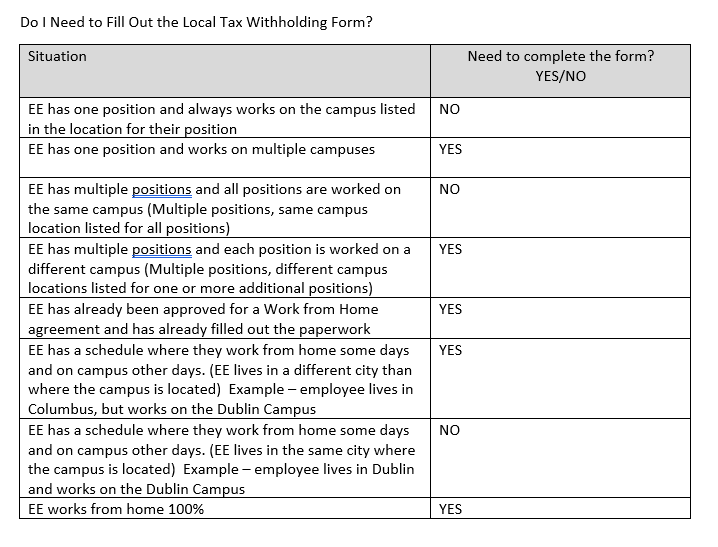
Please refer to the chart below if you need additional guidance on whether you need to complete the Local Tax Withholding Form. If you need additional guidance or have questions not answered in these instructions, please contact the payroll staff at payrolloperations@cscc.edu.
How to find your location
a. In Workday, click on the person Icon on the top right corner of the Workday screen. Alternatively, if you have uploaded a profile picture – your picture may show here.
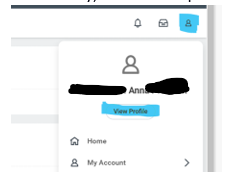
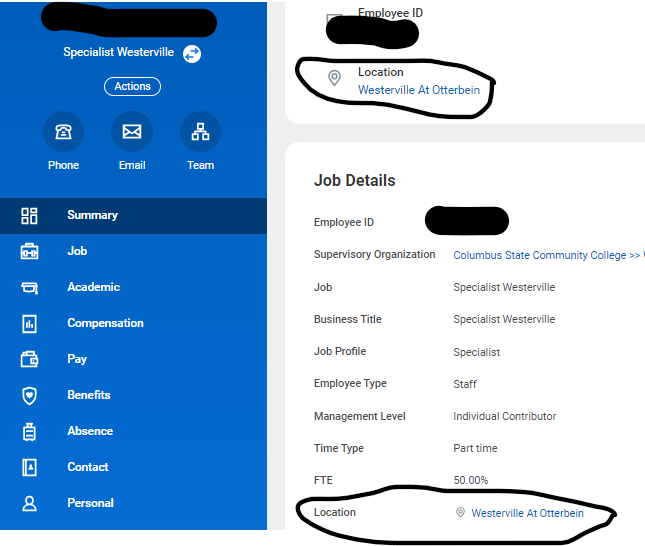
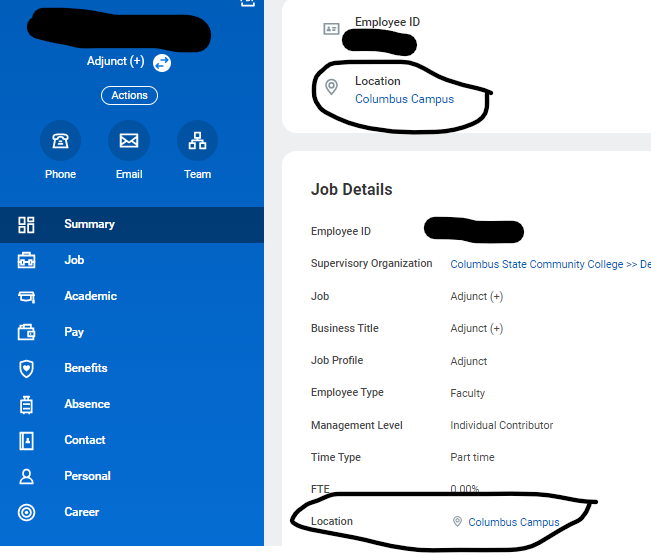
a. Click on the View Profile button and your profile will appear. The job/position that shows when you initially click on the View Profile button is your primary job/position.
b. You can see your title at the top and the location of your job/position in a couple of different areas.
c. If you have arrows next to your title, that denotes you have more than one job/position. If you click those arrows next to the job/position, you will see the information for the other job/positions appear. You can then select an additional job/position you want to look at.
You may also access the CSCC Local Tax Withholding Form through WorkDay! Here’s how!
a. Log into your Workday Account.
b. Go to the menu located at the top left of your screen.
c. Select the Pay app from the list (if you don’t have the Pay app listed, go to the
bottom where it says ‘Add Apps’. Select that button and add the Pay app.
d. Select Withholding Elections from the list located on the top right-hand side of the
screen in a box that says Worker Elections.
e. Select the Local Elections tab, scroll to the bottom of the page and click Update.
f. When you click Update, the screen shown below will pop up.
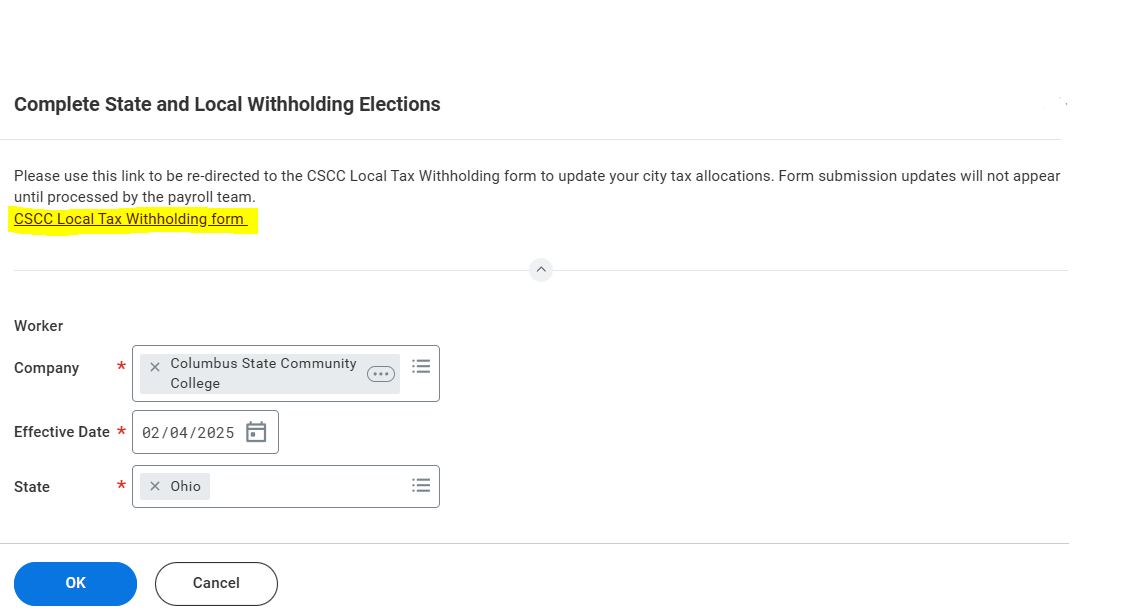
g. Click on the hyperlink to the CSCC Local Tax Withholding form and fill out the percentages
worked for each of your positions.
h. Once you have made your local withholding adjustments, you will receive an email
confirming your selections.
i. When you come back to the complete State and Local Withholding Elections screen,
click the Cancel button (unless you wish to update your state withholding selections).
Go to 2025 Update Archive Go to Employee Update
Latest Update Stories